Seed Finder app for Windows (beta)
Seed Finder is a free desktop app for Windows. It reads the ELDEN RING NIGHTREIGN map pattern from your screen and opens that pattern's page on this site. This is a beta and the interface is in English only. Bug reports and suggestions about the app are welcome: send them to me at [email protected] or through the Report button in the site footer.
Seed Finder is an unofficial fan-made tool, not affiliated with or endorsed by Bandai Namco or FromSoftware. ELDEN RING and NIGHTREIGN are trademarks of their respective owners.
Works with Easy Anti-Cheat
Seed Finder runs with Easy Anti-Cheat on. It only captures the image of the game window, the same way OBS or Discord do, and reads the map from that picture. It never reads the game's memory, injects anything, touches the game files or interacts with the anti-cheat.
Follow your seed on your phone or tablet
With Sync on, the app sends every seed it identifies to a browser tab, on this PC or on another device such as a phone or tablet. Open the link the app gives you, or scan its QR code, and that tab moves to each new seed's page by itself. Sync is off by default, and the app sends nothing to this site until you turn it on.
See it in action
A 46-second demo with the game, the Seed Finder app and a synced browser tab side by side. The seed and the timer are both set automatically at the start of the expedition.
Download
Version 0.2.5 · Windows · 3.2 MB · one .exe file, nothing to install and no DLLs.
Before you start
- ELDEN RING NIGHTREIGN for PC (sold separately).
- Windows 10 version 2004 or later.
- The game in windowed or borderless fullscreen mode. Exclusive fullscreen is not supported.
- The map opened at its default zoom (fully zoomed out).
- A 16:9 game area. Other aspect ratios use the centered 16:9 area.
How it works
Seed Finder only looks at the game while it is in front. Every 250 ms it reads just the zoom bar of the map. Once two reads in a row show the map open at its default zoom, it reads the map and identifies the pattern, which takes about half a second. It recognizes every Nightlord and map type, Shifting Earth included. In testing against the 520 reference patterns, it identified all 520.
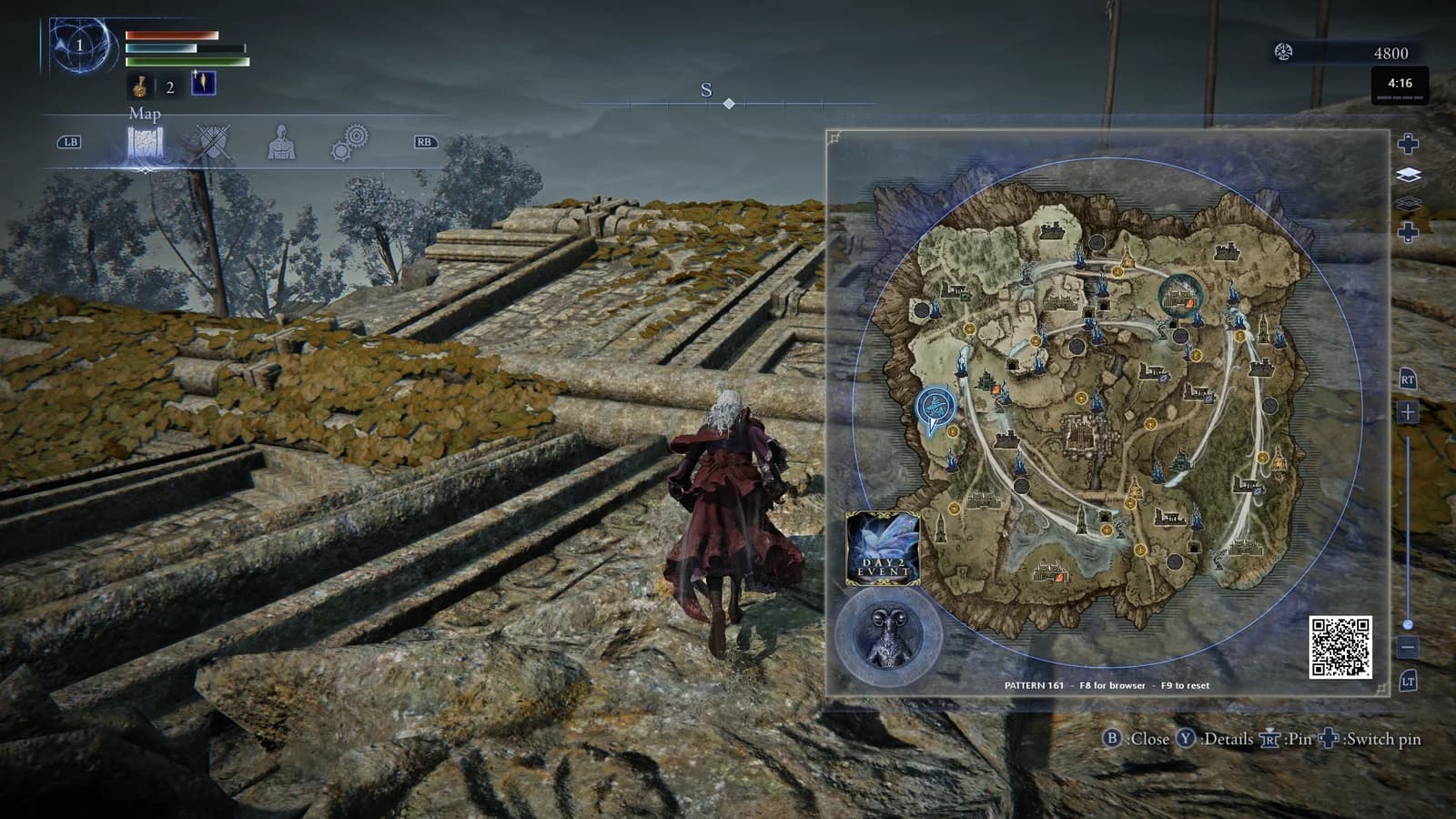
When it has the pattern, a line of text appears under the map in game, and F8 opens that pattern's page on this site.
- It captures only the game window, with Windows.Graphics.Capture, the same API OBS and Discord use. Where that API is not available, it captures the area of the screen under the game window instead.
- It finds the game in the list of running programs (nightreign.exe). It never opens the game's process.
- The captured images are processed in your PC's memory and are never sent anywhere.
Download and first run
The beta is a single executable, Seed-Finder-V0.2.5.exe. There is no installer and nothing to unpack.
- Download Seed-Finder-V0.2.5.exe and run it.
- Windows may warn that it does not recognize the app, because the app is new and not yet signed. Click More info, then Run anyway.
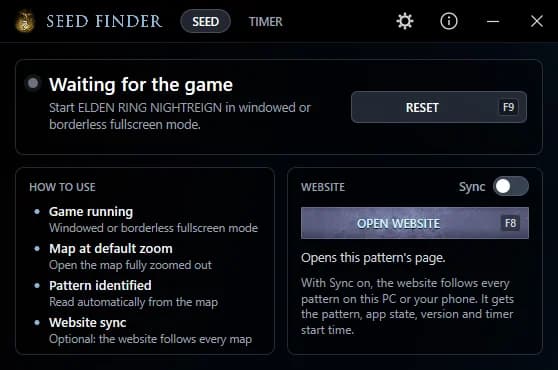
- Without the game running, the app shows "Waiting for the game". That is expected.
- Start ELDEN RING NIGHTREIGN in windowed or borderless fullscreen mode and open the map at its default zoom.
- Only one copy runs at a time. Opening the exe again brings back the one already open.
The main window
The top bar has the SEED and TIMER tabs, the gear for Settings, the info button for About, and the minimize and close buttons.
On the SEED tab, the status card shows a colored dot, the current state and what to do next. Gray means waiting, cyan ready, green identified, yellow needs your attention and red is an error. The card also holds the RESET button (F9).
The How to use card is a fixed checklist: Game running, Map at default zoom, Pattern identified, Website sync. The Website card has the Sync switch and the OPEN WEBSITE button (F8), which opens this pattern's page.
The status card shows one of these, where 024 stands for whatever pattern was read:
- Waiting for the game: "Start ELDEN RING NIGHTREIGN in windowed or borderless fullscreen mode."
- Game minimized: "Bring the game window back to read the map."
- "Open the map at its default zoom (fully zoomed out)."
- Map zoomed in: "Zoom all the way out to read the pattern."
- Pattern 024: the pattern was identified.
- Pattern 024?: "Not sure yet. Close and reopen the map to confirm."
- Pattern not recognized.
Reading the map
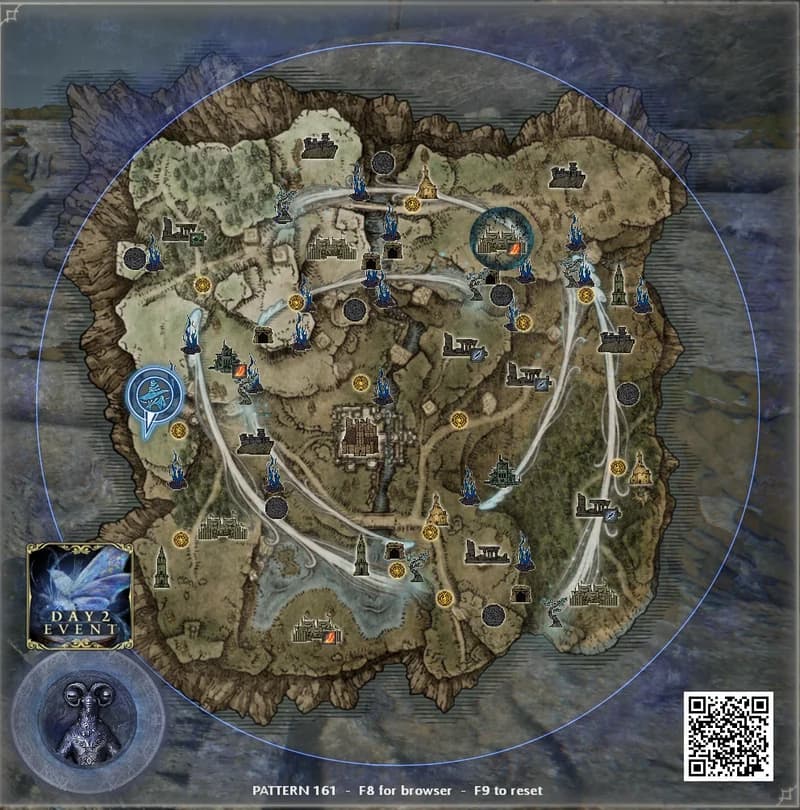
Open the map at its default zoom, fully zoomed out. The overlay shows "Identifying pattern..." for about half a second, then the result, as one line of text in the strip under the map. The line only shows while the map is open at default zoom. It goes away when you close the map, zoom in, open a menu or reach a loading screen.
Once a pattern is identified it stays locked until a reset, so reopening the map does not read it again. The lobby map at the Roundtable is never read, and the overlay stays hidden there.
Overlays stay out of screenshots and streams unless you turn on Include in screenshots in Settings. If you changed the keys, the overlay shows the ones you picked. The messages:
- "PATTERN 024 - F8 for browser - F9 to reset": the pattern was identified.
- "PATTERN 024 - on the website - F9 to reset": Sync is on, the pattern was sent and a website tab is following it.
- "PATTERN 024? - not sure, reopen the map - F8 for browser": the read is uncertain. Close the map and open it again.
- "Pattern not recognized - close and reopen the map"
- "Could not capture the map - close and reopen it"
- "Internal error - see seed-detector-error.txt in %TEMP%"
- "F8 unavailable" or "F9 unavailable": another program already uses that key. You can pick a different one in Settings.
Keys and the automatic reset
F8, F9 and F10 are the defaults, and you can change any of them in Settings. The keys only work while the game window is in front. The rest of the time they stay free for other programs. The buttons in the app window do the same things.
The app also resets by itself on the loading screen between expeditions, by recognizing the falcon in the bottom left corner of that screen. In a live test on 2026-10-25 across 5 maps, it reset at every change.
- F8 opens the pattern's page on this site in your default browser. With no pattern read yet, it opens the home page. With Sync on, it opens the synced tab instead.
- F9 resets the reading and goes back to waiting for the map.
- F10 starts the expedition timer in Manual mode.
Sync with the website
Sync is off by default. While it is off, the app creates no session and makes no request to this site at all. Sync is also the only part of the app that needs an internet connection.
When you turn it on, the app creates a temporary session. A website tab opened from its link, on your PC or on your phone, follows each new pattern by itself and moves to that pattern's page. A tab in the background does not check for updates and does not count as following. Uncertain or unrecognized reads are not sent, so the site stays on the last pattern. The synced tab also starts the timer in the site header at the same moment as the app's timer, and the link page has no ads.
With Sync on, the app sends its state, the pattern, its version and the time the timer started, along with the PC clock so the site can correct for any difference between the two clocks. As with any connection, the site also sees your IP address. The session ends when you close the app, after 10 minutes without a signal, or 24 hours after it was created. Turning Sync off ends it straight away.
- OPEN SYNCED TAB (F8): opens the session link in your default browser.
- SHOW QR CODE / HIDE QR CODE: shows the link as a QR code (SCAN WITH YOUR PHONE) to open it on your phone. It is hidden by default because the link lets anyone with it follow your seeds (read only, they can never change anything) and it could show up on a stream. It hides itself after 90 seconds or once a tab connects.
- Copy link: copies the link and shows Copied for 2 seconds.
- New link: closes the current session, so any linked tabs stop following, and creates a new one.
- "A website tab is following this app.": the link is working.
- "No connection (...)": the app retries by itself, waiting from 5 seconds up to 5 minutes between attempts.
- Other status lines: "Connecting to the website...", "Open the synced tab here, or scan the QR code with your phone.", "The link is turned off on the website right now.", "The site needs version X or newer of this app.", "Too many links from this network." and "Disconnected."
Expedition timer
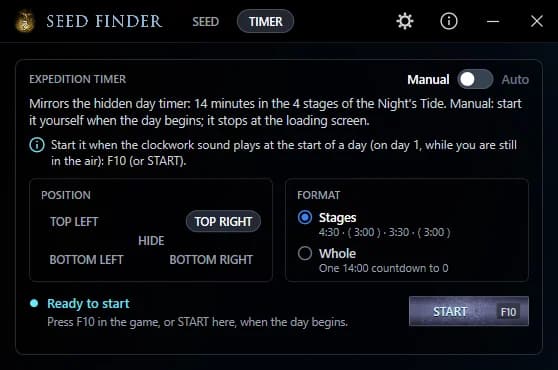
The TIMER tab mirrors the hidden day timer: 14 minutes across the 4 stages of the Night's Tide, the same stages as the Expedition Timer on this site. 4:30 until the first Night's Tide begins to close in, 3:00 while it finishes closing in, 3:30 until the second begins to close in, and 3:00 while it finishes closing in and the Night Boss arrives.
The timer stops at zero, on the loading screen at the end of the expedition, or when you press STOP. RESTART starts it again from zero. Switching modes stops a running timer.
In game, the timer is a slightly transparent black block in the corner you choose, with the time and a red progress bar, split into the 4 stages in the Stages format. It only shows while the timer is running and the game is in front, and the corner positions keep clear of the HUD. While it counts, the tab label shows the time too, as in TIMER · 4:26.
- Manual (the default): start it with F10 in game or START in the window. The tip in the app: "Start it when the clockwork sound plays at the start of a day (on day 1, while you are still in the air)". F10 is only registered in Manual mode.
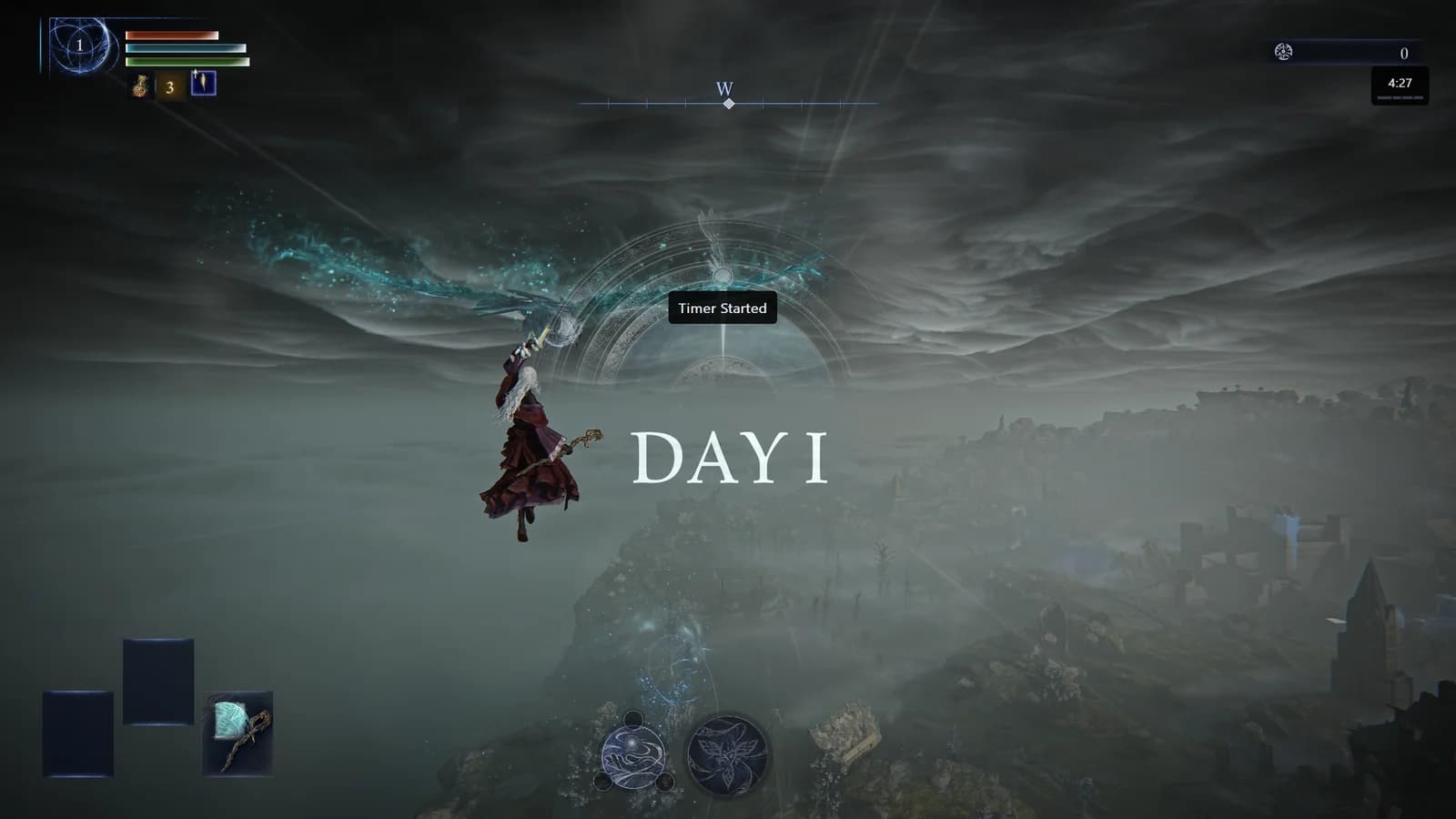
- Auto: starts by itself on the DAY I or DAY II banner, never on DAY III. It recognizes the dial above the banner text, so it works in any game language. It starts slightly ahead (0.5 s on Day I, 3.0 s on Day II) because the day begins before the banner shows. A "Timer Started" notice appears over the dial for 1 second when it starts, even with HIDE selected.
- Auto comes with a warning in the app: "Important: let the DAY I and DAY II banners play out. Keep the map and the game menus closed while a new day begins, or the timer may start late or miss the day."
- POSITION: TOP LEFT, TOP RIGHT, BOTTOM LEFT, BOTTOM RIGHT, or HIDE in the middle. With HIDE the timer does not show in game, but it keeps running in the app window and in a website tab linked by Sync.
- FORMAT: Stages shows 4:30 · (3:00) · 3:30 · (3:00), with the closing stages in parentheses as on the site. Whole is "One 14:00 countdown to 0".
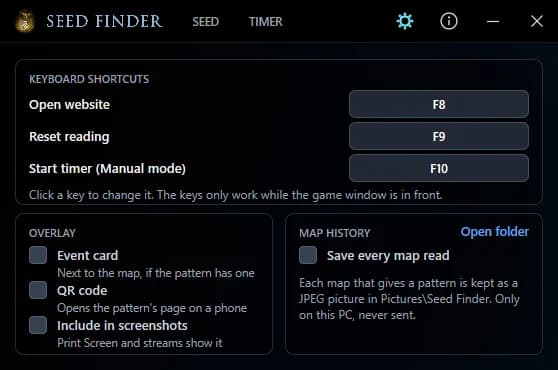
Settings
Open Settings with the gear in the top bar. Every option under OVERLAY and MAP HISTORY starts off.
- KEYBOARD SHORTCUTS: Open website (F8), Reset reading (F9) and Start timer (Manual mode) (F10). Click a key to change it. A function key works on its own (except F12, which Windows reserves), and any key works with Ctrl or Alt, with Shift added if you want. Alt+F4, Alt+Enter, Space, Tab, Esc and the Windows key are not allowed, and Esc cancels the change. If you pick a key another action already uses, the two swap. Restore defaults appears once you have changed a key.
- Event card: shows the event card next to the map, if the pattern has one. 251 of the 520 patterns have an event, and the cards come from this site.
- QR code: puts a QR code in the bottom right corner of the map panel. With Sync off it opens the pattern's page on a phone. With Sync on it opens the synced link.
- Include in screenshots: lets Print Screen and streams show the overlays, so you can send me a picture when an overlay looks wrong. While it is on, the QR code never shows the Sync link, only the pattern's page.
- Save every map read: each read that gives a pattern saves the map as a JPEG in Pictures\Seed Finder, named YYYY-MM-DD_HH-MM-SS_PATTERNnnn.jpg, about 200 KB each. The pictures stay on your PC and are never sent. Open folder opens that folder. If Windows Security blocks it, the tab says: "If Windows Security blocked it, allow Seed Finder in Controlled folder access."
System tray and closing the app
Minimizing hides the window in the system tray. The close button quits the app. While the window is hidden everything keeps working: the reading, the overlay, the timer, Sync and the keys.
The tray icon is gray while the game is closed, and its tooltip shows the current state, for example Seed Finder 0.2.5 · pattern 024 · timer 4:26. Click the icon to bring the window back, or right-click it for Open Seed Finder, Open the website and Quit. On Windows 11, new icons go to the hidden part of the tray (the ^ arrow) until you pin them.
The app only shows notifications for errors. The About window, behind the info button, has the version, the author, the contact email, links to the site and the Privacy Policy, and the unofficial tool notice.
Files on your PC and removing the app
The app keeps your settings and the performance logs of the last 20 sessions in %LOCALAPPDATA%\SeedFinder, with no personal data in them. An internal error is written to seed-detector-error.txt in your temp folder (seed-detector is the internal name of the app). None of this leaves your PC, and nothing is written next to the exe. If you used 0.2.0 to 0.2.2, the old settings in C:\seedfinderapp are moved over by themselves.
To remove the app, delete the exe and the %LOCALAPPDATA%\SeedFinder folder, plus Pictures\Seed Finder if you turned on Save every map read.
Known limitations
This is a beta. These are the gaps I know about in 0.2.5:
- Exclusive fullscreen is not supported. The capture comes out black and the app says "The game capture is black. Use windowed or borderless fullscreen mode."
- It does not recognize the player marker or the cataclysm rings drawn over the map yet. The read tolerates a few covered slots.
- It has been tested at 1920x1080 and 2560x1440. HDR has not been tested.
- On Windows 10 the capture draws a yellow border around the game window. Windows 11 does not.
- An uncertain read shows "PATTERN 024? - not sure, reopen the map" and is read again the next time you open the map.
- If the falcon appears on a loading screen in the middle of an expedition, the automatic reset clears a pattern that was still valid. Reopen the map at its default zoom to read it again.
- Deep of Night maps that hide part of their information still need the manual search on this site.
Privacy and contact
The app captures only the game window and processes the images in memory on your PC. With Sync off it sends nothing to this site. With Sync on it sends the app state, the pattern, the app version and the timer start time. There is no account, no ads and no analytics or telemetry in the app. The Privacy Policy has the full detail.
Bug reports and suggestions about the app are welcome: send them to me at [email protected] or through the Report button in the site footer.